
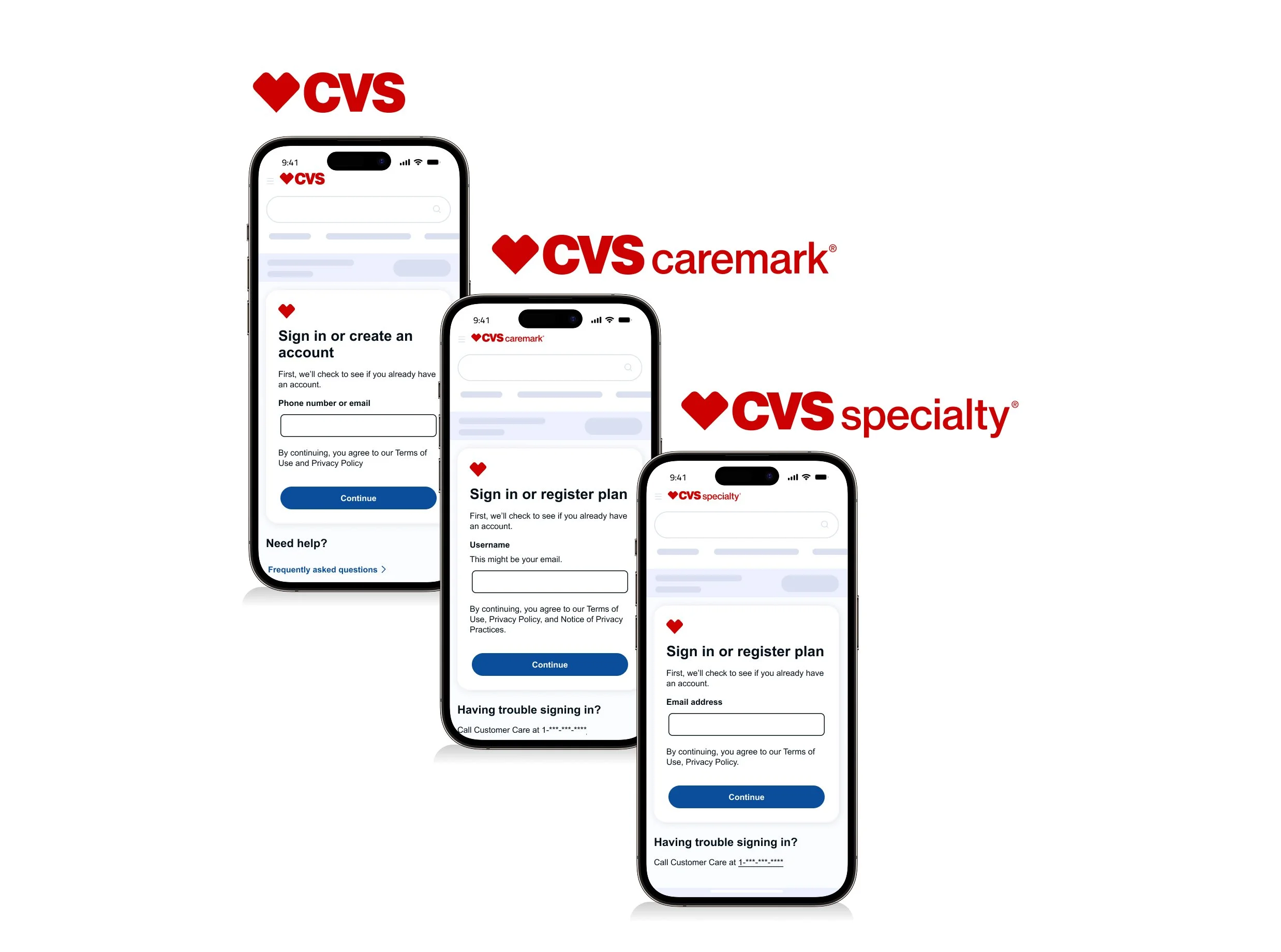
CVS Health - Sign in, Create account and Registration
The sign-in and registration experience is designed to securely authenticate users while keeping the process seamless. Users are identified through existing credentials—such as email, phone number, or username—depending on which CVS Health platform they are accessing (CVS Health, Caremark, or Specialty).
If a user is not found in the system, the flow transitions them into registration to establish a verified account. Across all three experiences, the focus remains on accuracy, security, and minimizing friction for the user.
Overview
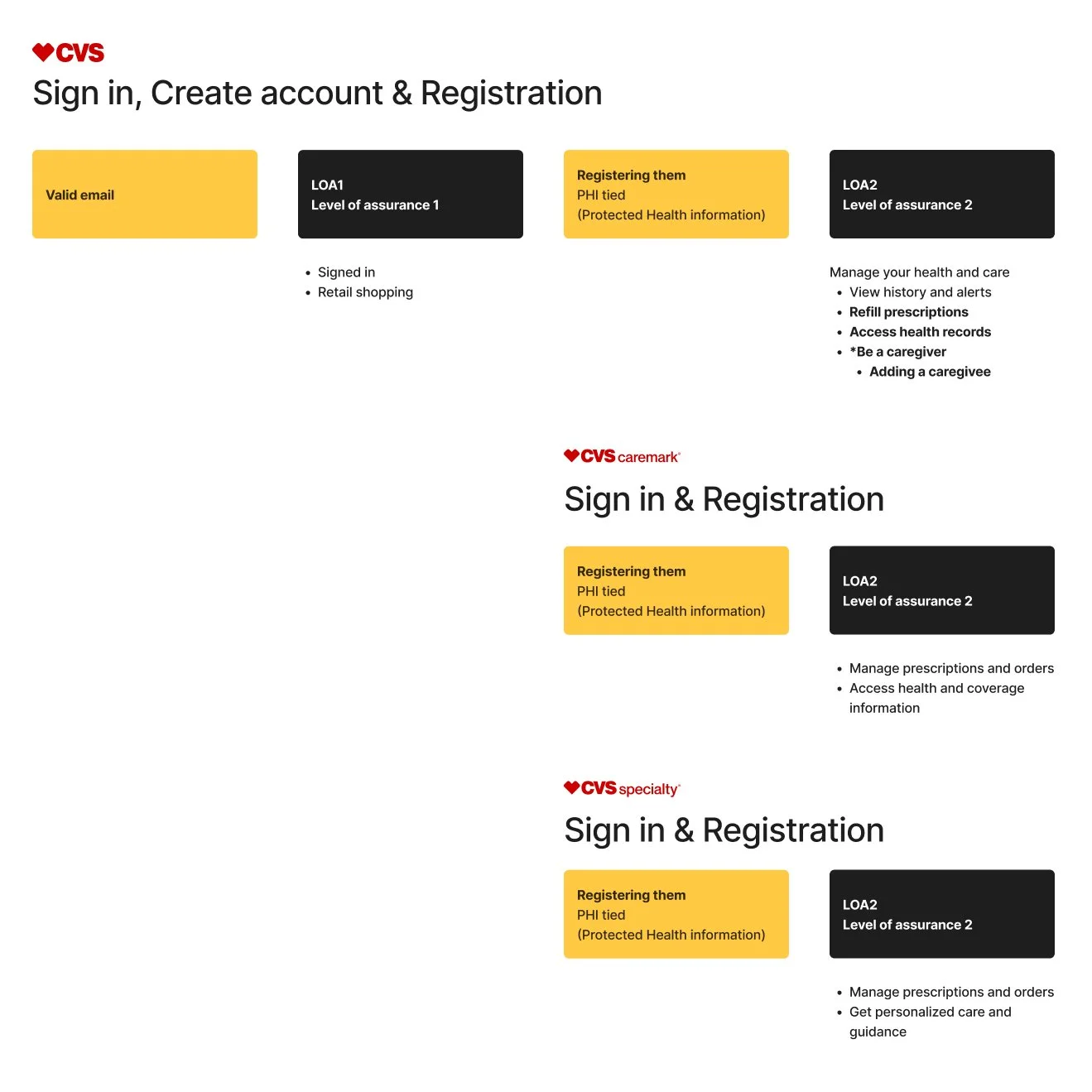
Authentication within CVS Health is structured across two levels of assurance. LOA1 supports basic access, allowing users to sign in and complete retail shopping.
LOA2 enables higher-trust access and introduces PHI (Protected Health Information), allowing users to securely manage sensitive features such as caregiver access, prescription refills, health records, and MinuteClinic scheduling.
For Caremark and Specialty, users are registered directly into LOA2, ensuring immediate access to experiences that require elevated authentication and protected health data.
My role
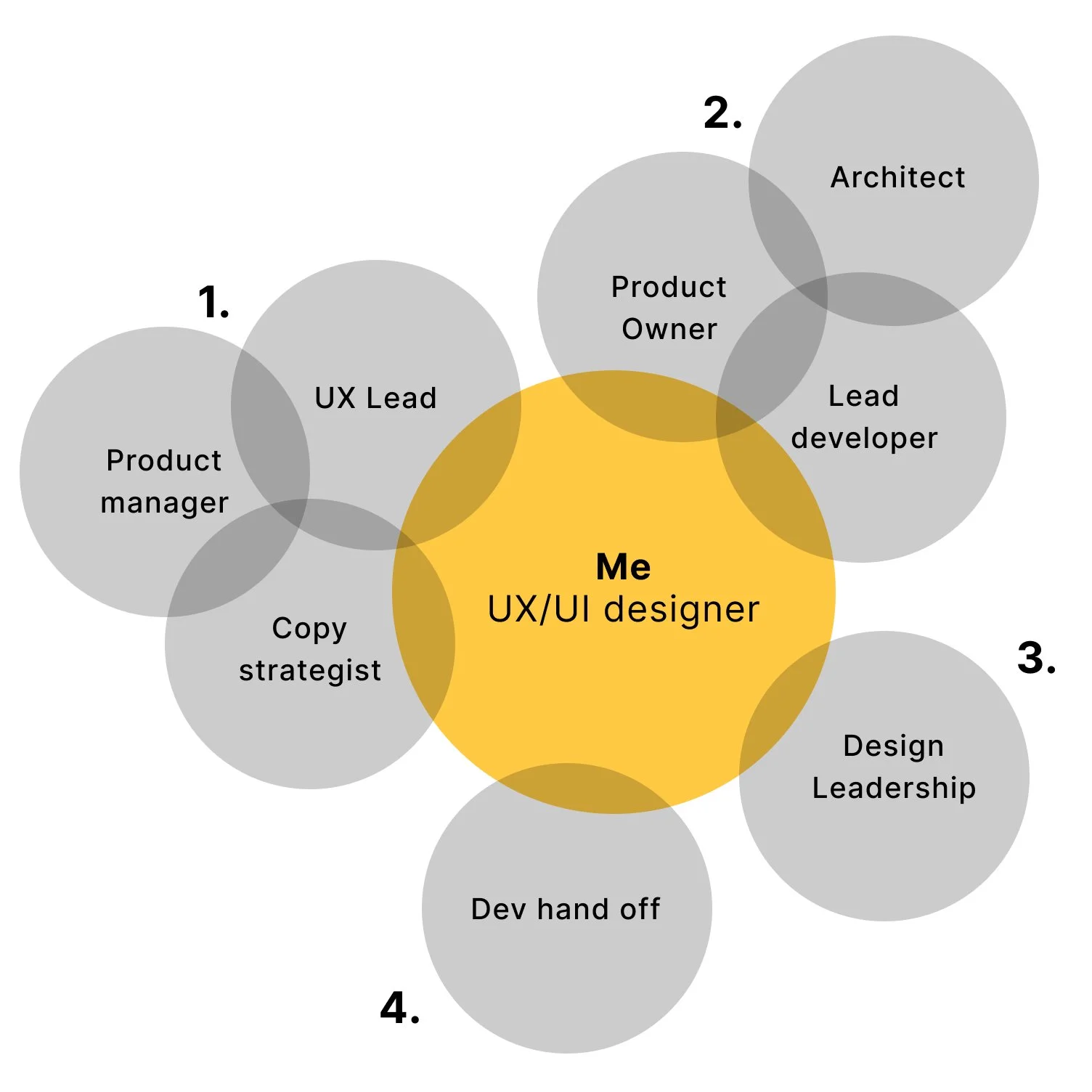
Identify opportunities
I reviewed metrics-driven recommendations from the product manager and partnered with the UX Lead and copy strategist to assess proposed changes within the flow, raising early technical and usability questions.Validate feasibility
I collaborated with the product owner, architect, and lead developer to resolve open questions, align on technical constraints, and confirm feasibility.Present design solutions
I explored and mocked up multiple design concepts, aligning them with current branding and accessibility guidelines through ongoing collaboration with the UI kit team. I presented recommendations to design leadership and cross-functional stakeholders for review and alignment.Finalize and hand off
I refined approved screens and delivered developer-ready Figma files, including detailed annotations, accessibility considerations, user flows, and assets to support implementation.
Two shared authentication patterns
Across CVS Health, Caremark, and CVS Specialty, I aligned the sign-in and registration experiences around two core patterns: a two-step sign-in and a one-time passcode (OTP) flow.
These shared authentication methods create consistency across platforms while maintaining secure, streamlined access for users.
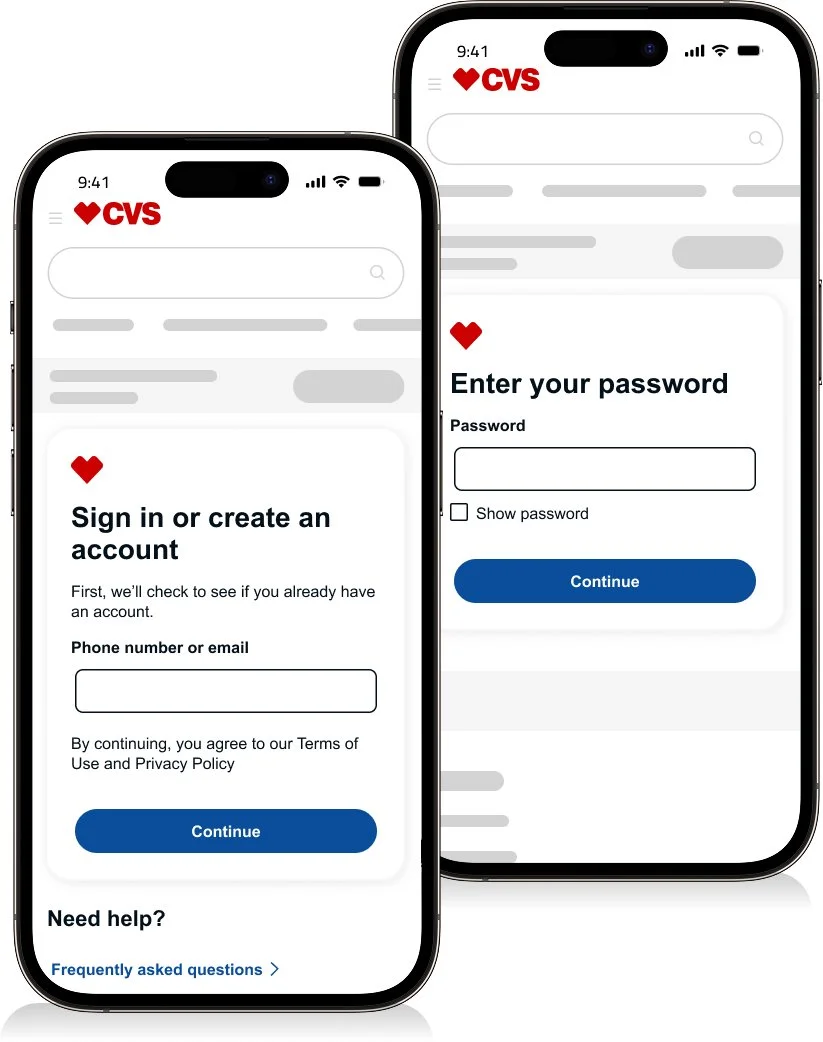
Two-step sign-in
I designed the first screen to capture the user’s email and the second to prompt for their password.
By separating these steps, I validate the email before requesting a password. If the system recognizes the email, the flow continues seamlessly to password entry. If not, the experience redirects users to create an account or register—depending on the appropriate path—reducing confusion and unnecessary friction.
One time passcode (OTP)
I designed the one-time passcode (OTP) experience as a two-step process. First, users confirm the email or phone number where the code will be sent. Then, they enter the received code on the following screen to complete authentication.
This flow verifies user identity while maintaining a secure and streamlined sign-in experience.
CVS Health
This section covers three categories: Sign-in, Create an Account, and Registration. I outline each flow step by step and highlight the unique pages within each experience.
Sign in
Two step sign-in
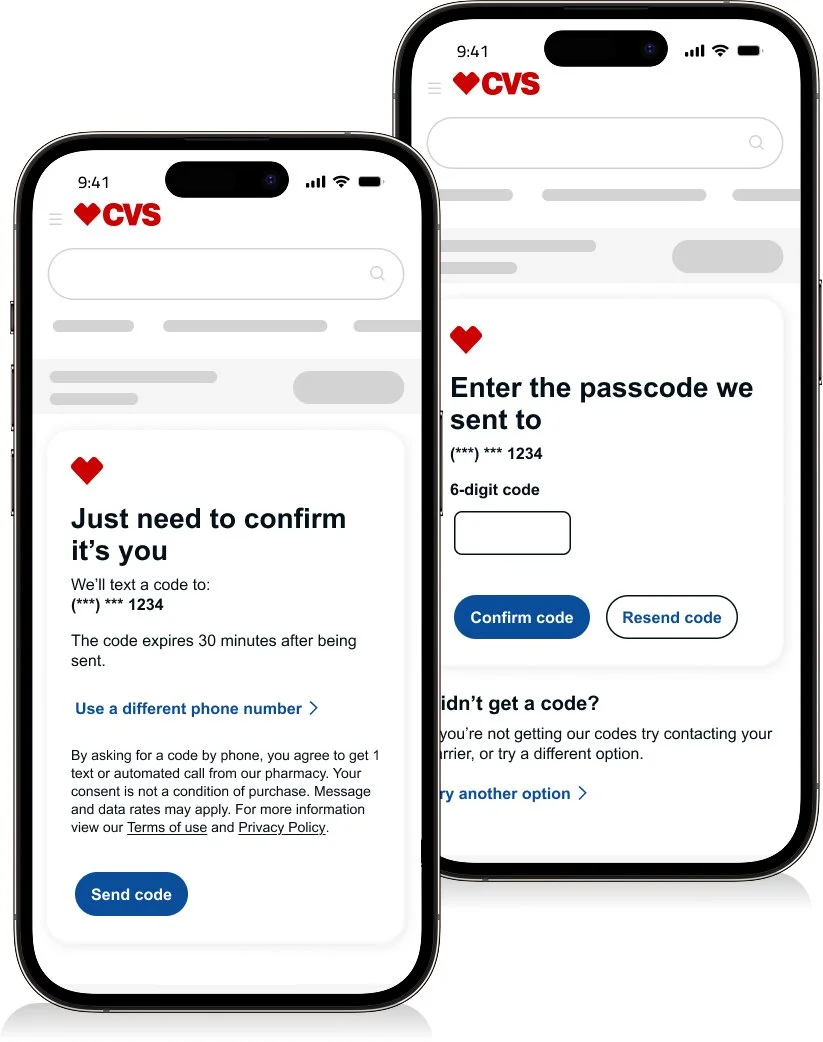
Users enter their email or phone number. The system validates the credential and prompts for the next step.One time passcode
Users confirm their identity by entering a one-time passcode sent to their verified email or phone number.Successfully signed in
After verification, users return to where they left off within the experience.
78.6K weekly users with an 81.6% authentication success rate—supporting secure, seamless sign-in at scale.
Create an account
Users who do not yet have an account begin at LOA1 (Level of Assurance 1). At this stage, they create a basic CVS Health account that enables secure sign-in and retail access.
Enter your username
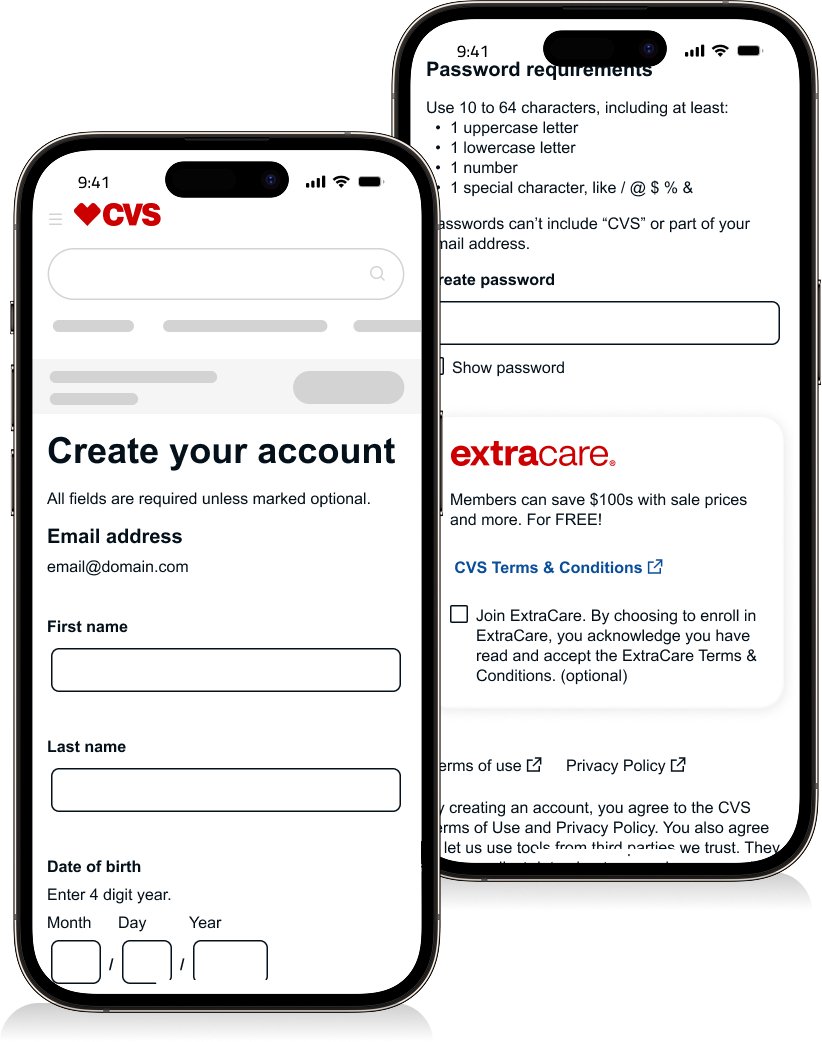
Users begin by entering their email or phone number to verify whether an account already exists.*Create an account
Users complete required fields, including first and last name, date of birth, phone number, password, and the option to join ExtraCare.
One time passcode
User confirms their identity by entering a one-time passcode sent to their verified email or phone number.Successfully signed in
Upon verification, users gain access to their account.
90% account creation success rate—helping users onboard quickly and confidently.
Registration
Users enter registration when they need LOA2 (Level of Assurance 2) authentication to access protected services.
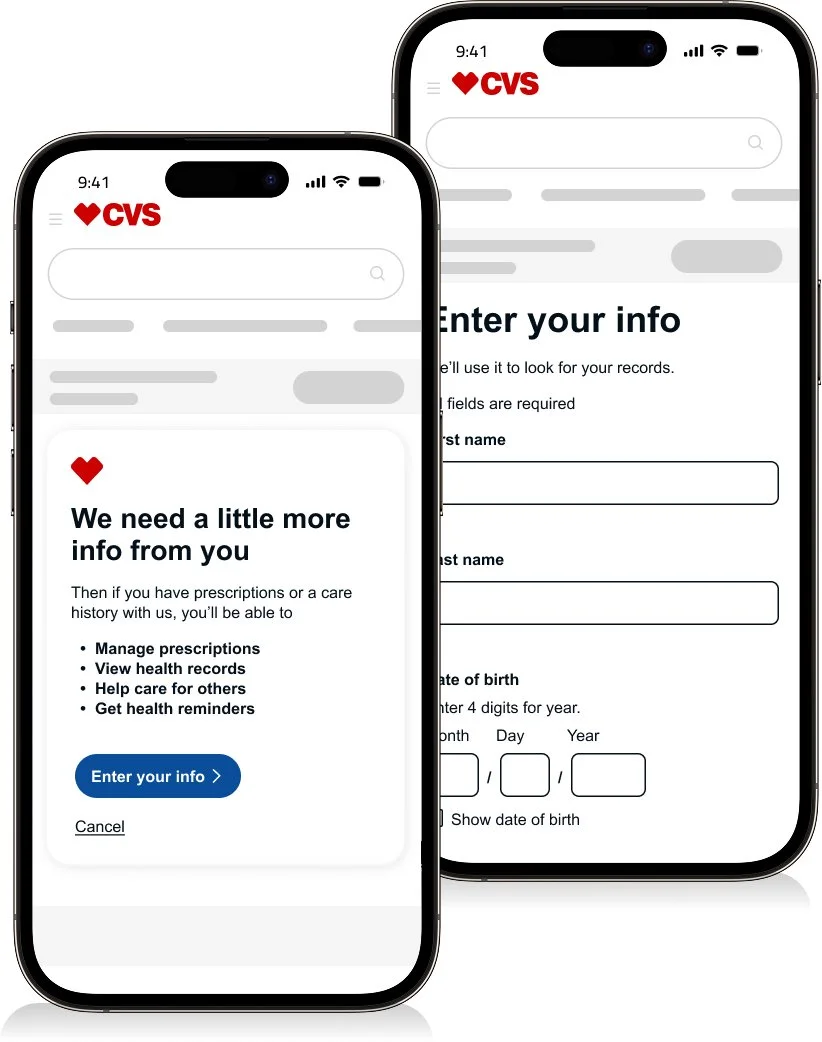
*Introduction
I present a legal overview outlining the benefits and permissions users receive as they proceed.*Enter information
Users complete required fields, including first and last name, date of birth and phone number.One time passcode
User confirms their identity by entering a one-time passcode sent to their verified email or phone number.*Consent
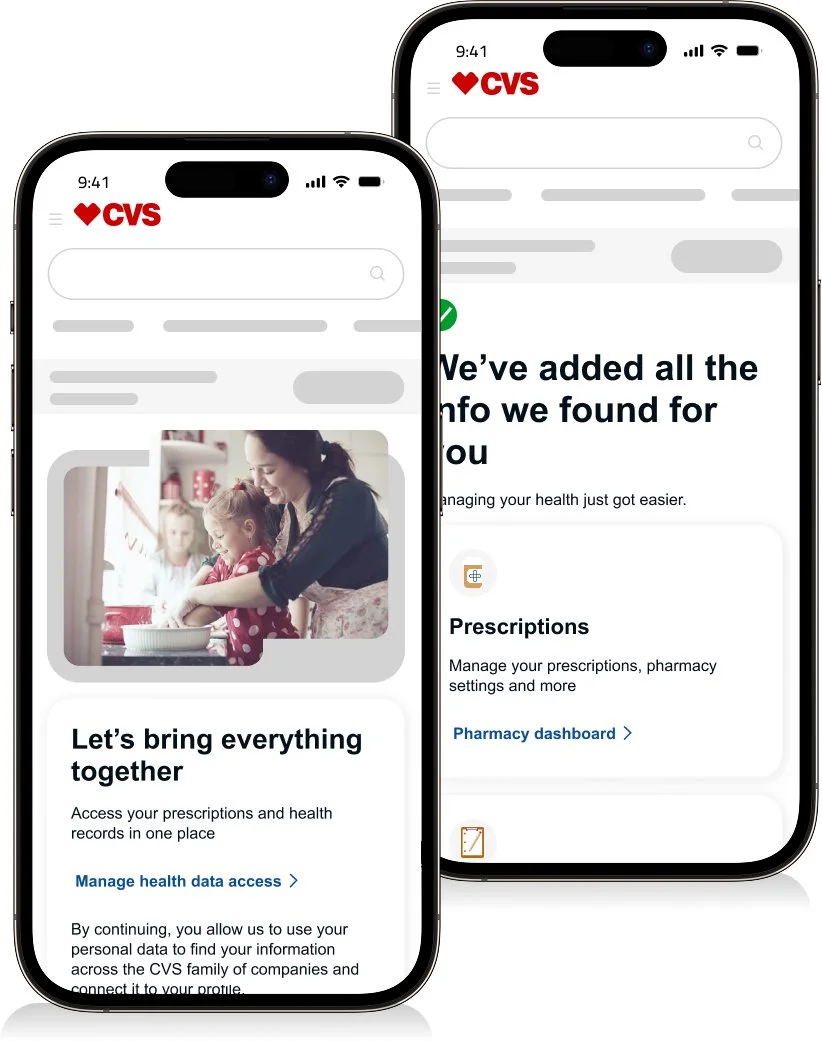
I collect user consents and permissions, enabling CVS Health to personalize and tailor future experiences.*Successfully registered
Based on selected consents and system constraints (such as ID associations), I display the most relevant next-step tiles—up to four personalized options—to guide users forward.
~80% registration success. Secure access. Lower friction
“I can share how introducing a dedicated date-of-birth screen improved registration lookup success by 0.3%.”
CVS Caremark
This section covers two categories: Sign-in and Registration. I outline each flow step by step and highlight the unique pages within each experience.
Sign in
Two step sign-in
Users enter their email or phone number. The system validates the credential and prompts for the next step.One time passcode
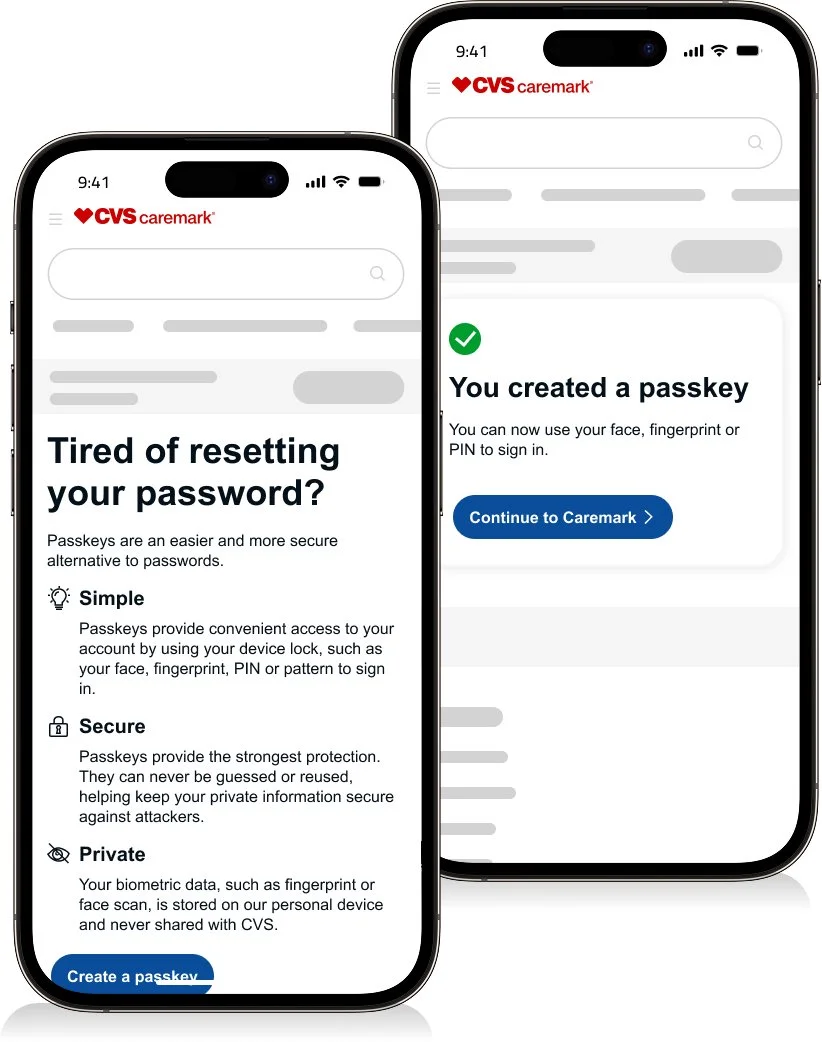
Users confirm their identity by entering a one-time passcode sent to their verified email or phone number.*Create passkey
If users opt in, I enable passkey setup using device-based biometric authentication (such as facial recognition). This allows future sign-ins to occur automatically, creating a faster and secure experience.*Created passkey and signed in
The system confirms successful passkey setup and provides a link to continue where the user left off.
88.29% authentication success across 498K weekly users—delivering secure access at scale
Registration
Two step sign-in
Users enter their email or phone number. The system validates the credential and prompts for the next step.One time passcode
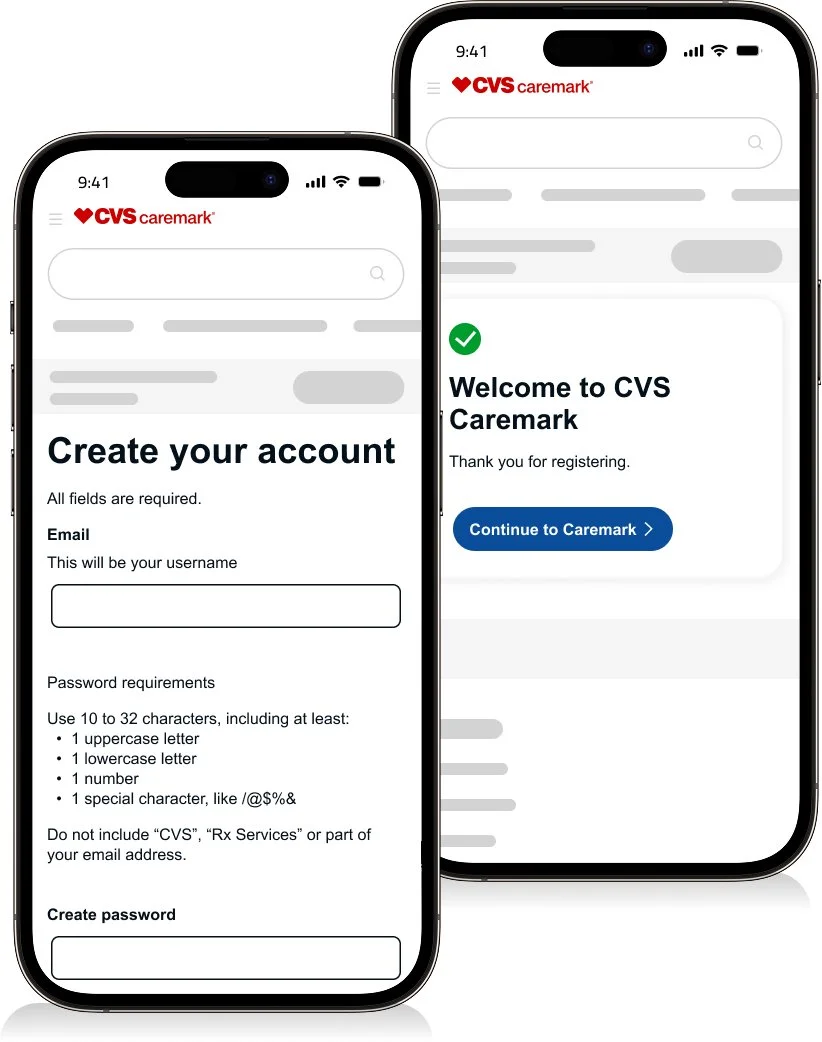
Users confirm their identity by entering a one-time passcode sent to their verified email or phone number.*Create your account
Users complete required fields, including email and password, to establish their account.*Successfully registered
The system confirms successful registration and grants access to CVS Caremark services.
21.3K weekly users with an 84.99% registration success rate—supporting secure onboarding at scale
“I can walk through a registration concept designed to reduce fallouts when multiple accounts are associated with a single user.”
CVS Specialty
This section covers two categories: Sign-in and Registration. I outline each flow step by step and highlight the unique pages within each experience.
Sign in
Two step sign-in
Users enter their email or phone number. The system validates the credential and prompts for the next step.One time passcode
Users confirm their identity by entering a one-time passcode sent to their verified email or phone number.Create passkey
(For visuals, refer to the Caremark section)
If users opt in, I enable passkey setup using device-based biometric authentication (such as facial recognition). This allows future sign-ins to occur automatically, creating a faster and secure experience.Created passkey and signed in
(For visuals, refer to the Caremark section)
The system confirms successful passkey setup and provides a link to continue where the user left off.
311.1K weekly users with a 91.82% authentication success rate—delivering secure sign-in at scale
Registration
Two step sign-in
Users enter their email or phone number. The system validates the credential and prompts for the next step.One time passcode
Users confirm their identity by entering a one-time passcode sent to their verified email or phone number.Create your account
(For visuals, refer to the Caremark section)
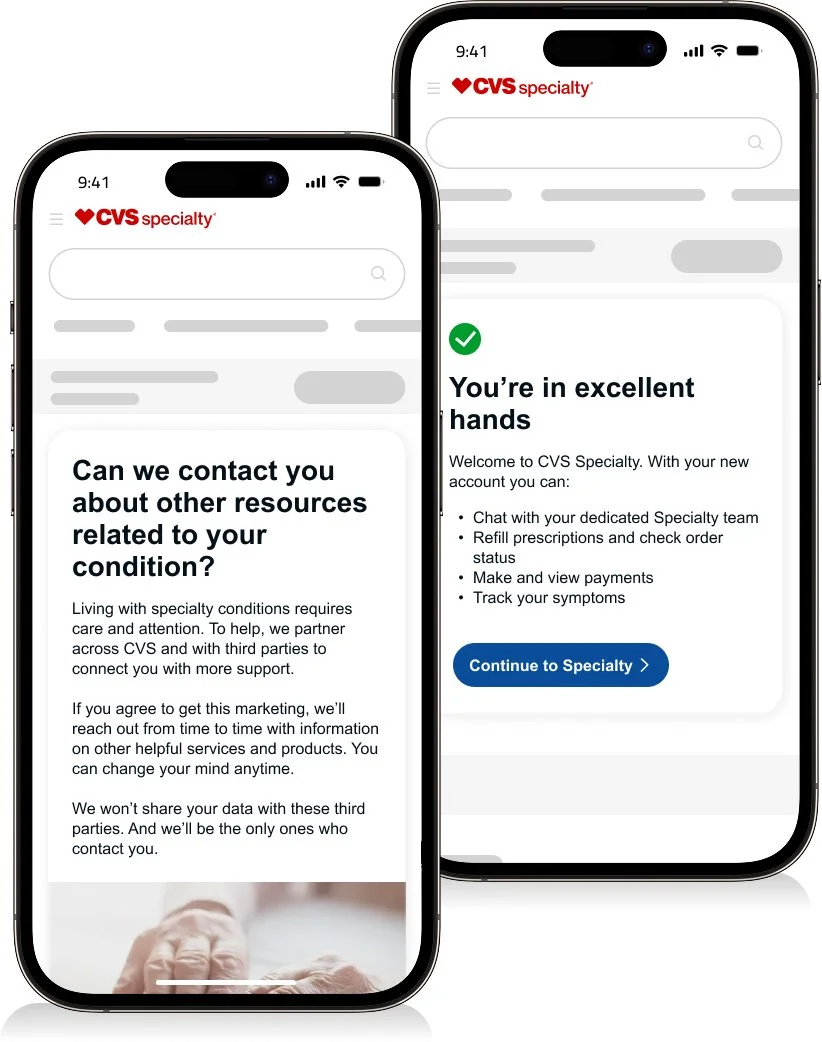
Users complete required fields, including email and password, to establish their account.*HIPAA Consent
Users provide voluntary consent allowing CVS Specialty to use or disclose their Protected Health Information (PHI) for routine treatment, payment, and healthcare operations.*Successfully registered
The system confirms successful registration and grants access to CVS Specialty services.
9.3K weekly users with an 84.93% registration success rate—supporting secure onboarding for specialty care access
Dev hand off
See the Design Process and Systems section to explore how I approach annotations, accessibility, and error management through a centralized catalog that drives consistency.
Full flow
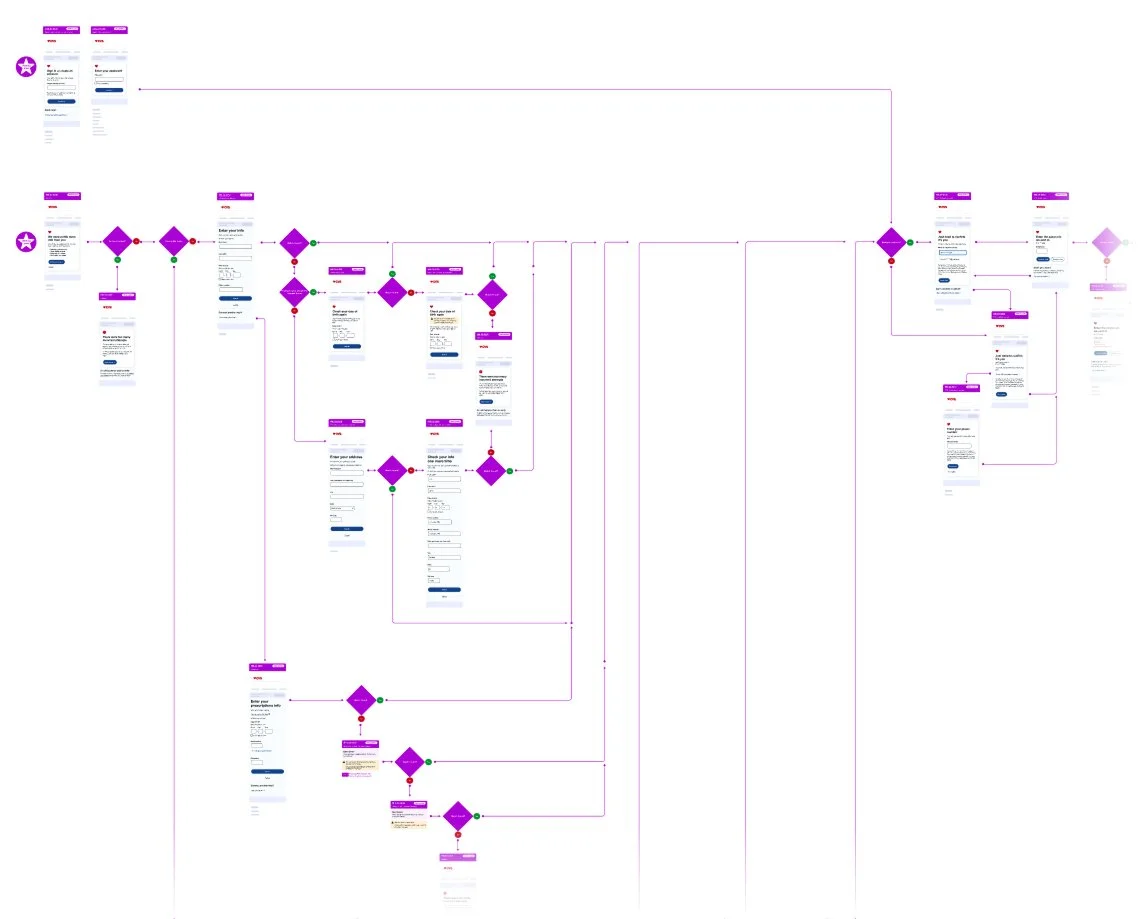
Comprehensive user flows were created in collaboration with engineering and architecture to ensure end-to-end alignment. These flows documented key states and edge cases, retry attempts, and system nodes, supporting accurate and predictable implementation.
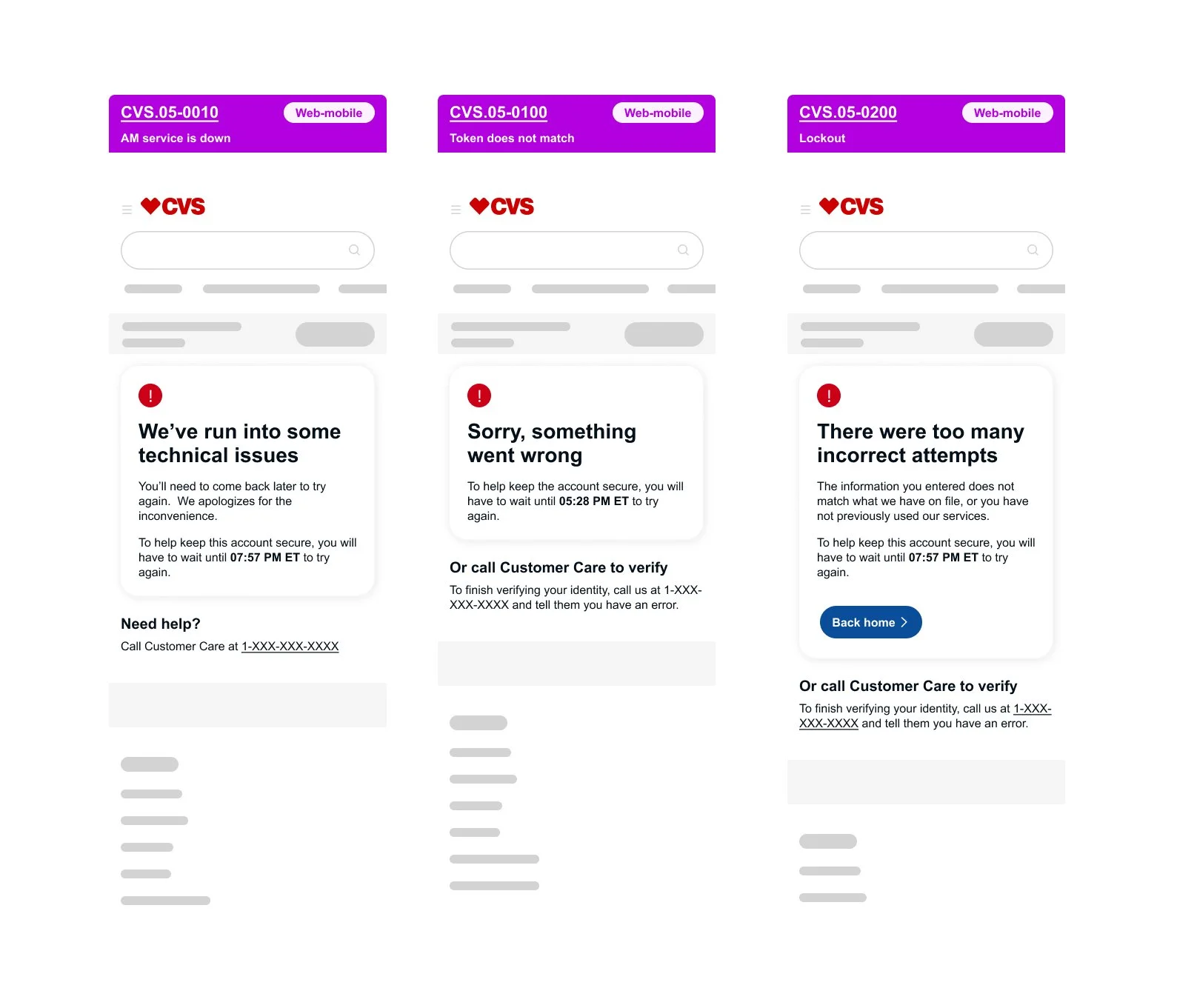
Error handling
Not every user journey follows a happy path. Designing effective error handling requires close collaboration with engineering to understand system limitations and potential failure states. While the goal is always to guide users toward the most helpful outcome, certain error conditions may limit available responses. In those cases, the focus shifts to reducing confusion and preventing frustration through clear, intentional feedback.
“I’d be glad to walk through how I annotate UI and provide a deeper look at the detailed flows across all three CVS family platforms.”